
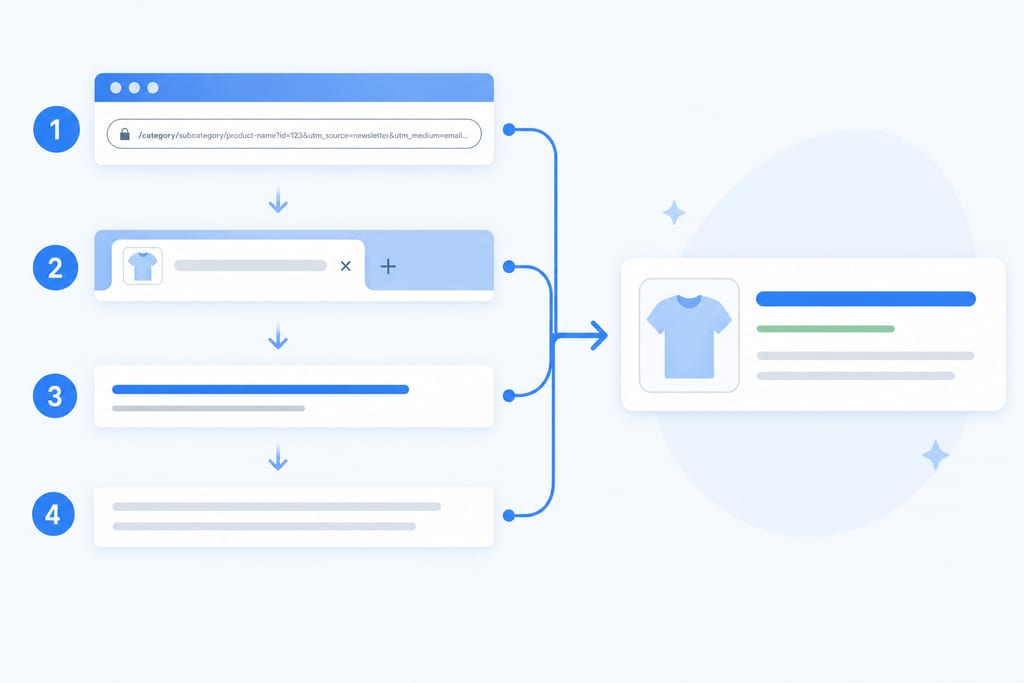
Shopify product page SEO comes down to six layers working together: handles, metadata, images, schema, variants, and the on-page bits that turn a click into a sale. Shopify builds the handle (that’s the URL slug) automatically from your product title the moment you hit save, and if you rename the product later, the old handle can stay live while a new one gets created, which leaves Google trying to rank two URLs for one product. Variants make this worse, because colour or size options often get their own URL path with query strings tacked on, and Google can read those as separate pages full of duplicate content.
Most Shopify store owners spend their SEO time on the product title and maybe the meta description, then move on. That covers one layer out of six. The handle structure, alt text on gallery images, structured data for price and stock, and the way variants are coded all sit underneath, quietly deciding whether a product page shows up in search or sits on page three. A full pass through the page needs to check ranking signals and the things that get a visitor to actually add to cart, because a page that ranks but doesn’t convert still costs you money.
Table of Contents
Why Product Pages Lose Rankings Without Anyone Noticing
Rankings rarely drop because of one big mistake. They drop because small structural issues pile up quietly, and nobody checks the back end once a product goes live.
| Issue | Typical cause |
|---|---|
| Orphaned handle still indexed | Product renamed, old slug never redirected |
| Duplicate variant pages | Colour or size options each get a separate URL |
| Thin meta description | Shopify pulls the first line of body text by default |
| Missing alt text | Bulk image uploads skip the manual fields |
The handle problem starts at the very first save. Shopify locks the slug to whatever the product title was that day, so if you rename “Blue Running Shoe” to “Men’s Trail Runner” six months later, the handle keeps saying blue-running-shoe unless someone edits it by hand.
Variants add a second layer of risk. Each colour or size option can get its own indexable URL with the base product content repeated underneath it, which gives Google several near-identical pages competing for the same search term instead of one strong page.
Clean Up Handles Titles and Meta Descriptions
Fixing the handle is the first job once you know it’s wrong. Open the product page, strip out words like “the”, “a”, or “our” from the slug, and keep only the product type and the detail that makes it unique, so “the-mens-trail-runner-shoe-new” becomes “mens-trail-runner”.
Titles need the same discipline. Keep them under 60 characters so Google doesn’t cut them off in search results, and always include the product type, not just the brand name, because “Atlas Pack” tells a shopper nothing but “Atlas 40L Hiking Pack” does.
Meta descriptions get skipped the most. Shopify will auto-fill one from your body text if you leave the field blank, and that usually means a generic sentence with no reason to click. Write one that states the price range or the main benefit instead of echoing the title word for word.
- Handle: core keyword only, no stopwords, no dates
- Title: product type included, under 60 characters
- Meta description: price range or benefit, not a repeat of the title
- Check for duplicate titles across colour variants of the same product
Get Images and Schema Pulling Their Weight
Images and schema are the layers most stores skip because they load in automatically and look fine on screen. They don’t help you rank unless you set them up on purpose. Start with file size: compress every product image to under 100KB so the page loads fast on mobile data, and rename files from “IMG_4821.jpg” to something like “mens-trail-runner-side-view.jpg” before upload.
Alt text should describe what’s actually in the photo, the colour, the angle, the material, not a string of keywords stacked together. Google uses alt text to understand images for search and for accessibility tools, and keyword stuffing in that field can get the whole page flagged as low quality.
Product schema is the part most stores never touch at all. Add structured data fields for price, stock availability, and review rating, because that’s what lets Google show a star rating and price directly in the search result.
- File size under 100KB, descriptive file name
- Alt text describes the product, no keyword stacking
- Schema fields: price, availability, review rating
- Test schema output before publishing, not after
Stop Variants From Duplicating Your Product Pages
Variants cause the most damage because they multiply without anyone deciding it should happen. Open a product with colour or size options and watch the URL bar as you click through them. If the address changes each time, that variant has its own indexable page, and Google may be trying to rank three or four near-identical URLs for one product term.
The fix is a canonical tag on every variant URL pointing back to the main product page, so search engines know which version to treat as the master copy. Shopify doesn’t always set this up correctly by default, and some themes handle it better than others, so it’s worth checking directly in the page source rather than assuming it’s covered according to Shopify SEO For Product Variants.
Reviews and backlinks split across variant pages are the quiet cost. A link earned by one colour variant does nothing for the other nine if they’re all separate URLs.
- Click through every variant and watch for URL changes
- Confirm canonical tags point to the main product URL
- Check review counts aren’t split across variant pages
- Audit backlinks landing on variant URLs instead of the main page
Add Trust Signals That Turn Visits Into Sales
Ranking well means nothing if the shopper lands and leaves. Star ratings and the review count need to sit right next to the product title, above the fold, because that’s the first thing a buyer checks before reading a single word of description.
Shipping timeframe and returns policy matter just as much. State the dispatch window and the return window in plain terms near the price, not buried in a linked policy page three clicks away. A shopper deciding between two near-identical products often picks the one that answers these questions first.
On mobile, the add-to-cart button has to stay visible without scrolling, since most Shopify traffic now comes from phones. If a customer has to hunt for the button under a long description, you lose the sale to a competitor with a cleaner layout, a gap teams at AI SEO work usually find when running a full page review.
- Star rating and review count near the title
- Shipping timeframe stated in plain days, not “varies”
- Returns policy visible above the fold
- Add-to-cart button visible on mobile without scrolling
Pick a Starting Category for Your Store
You don’t need to fix all six layers in one sitting. A store with 40 products and a few colour options can work through the full list in an afternoon. A store with 2,000 SKUs across multiple variant types should pick one category, fix it everywhere, then move to the next, because trying to touch handles, schema, and variants at once on a large catalogue usually means none of them get finished properly.
| Category | Fix |
|---|---|
| Handle | Strip stopwords, keep product type only |
| Metadata | Title under 60 characters, meta description states price or benefit |
| Images | Under 100KB, descriptive file name, alt text describes the product |
| Schema | Price, stock availability, review rating fields added |
| Variants | Canonical tag on every variant URL, reviews consolidated |
| Conversion | Star rating above the fold, shipping days stated, add-to-cart visible on mobile |
If your team is small, start with handles and metadata since both can be done without touching code. Schema and variant canonicals usually need a developer or theme edit, so batch those together and brief one person to handle the whole set. A store running on a page builder theme might already have canonical tags set correctly, which is worth confirming in the page source before assigning anyone the work, something covered in the Shopify product page optimisation guide.
Stores selling through paid ads as well as search should weigh the conversion row higher than the rest, since a page that already ranks is losing money every day the add-to-cart button sits below the fold on mobile. Stores still building organic traffic get more out of fixing handles and variant duplication first, because those issues stop Google from indexing the page properly in the first place. A local SEO review can confirm which of the two situations applies to your store before you commit time to either path.
Choose Your Best Seller and Run the Checklist on It First
Open your highest-selling product page and work through every layer on that one page before touching anything else in the catalogue. You’ll see ranking and conversion movement faster on a product that already gets traffic, and that page becomes the template you copy across the rest of the catalogue instead of guessing at each one separately. If you’re not sure which pages need attention first, ScaleCurrent’s free AI check can flag the worst offenders before you commit an afternoon to the wrong product. Fix that one page properly, document what you changed, then roll the same steps out category by category.
Want more customers from Google and AI search? Tell us about your business.
Shopify Product Page SEO Questions
Will fixing variant URLs break existing product links customers have bookmarked?
No, adding a canonical tag doesn’t remove or redirect the variant URL, it just tells Google which version to rank. The bookmarked link still loads and still works for the customer. The only change is which URL shows up in search results, and that should be the main product page instead of a specific colour or size variant.
Do I need an app to manage schema markup or can I do it manually?
Either works, depending on your theme and your comfort with code. Some Shopify themes already output basic product schema, and you only need to add the missing fields like review rating by hand. If your theme doesn’t support it at all, a schema app saves time, but check the output in the page source either way before you trust it’s correct.
How often should I recheck product pages after making these fixes?
Check again after any product rename, variant change, or theme update, since any of those can reset a handle or strip a canonical tag without warning. Outside of that, a quarterly pass through your best sellers catches most new issues before they cost you rankings. A full catalogue review once a year is usually enough for smaller stores.
Can duplicate variant pages get my store penalised by Google?
Google doesn’t usually issue a manual penalty for this, it just picks one version to rank and ignores the rest, which quietly caps your visibility. The real cost is split reviews and wasted crawl budget on pages that compete with each other. If you’re not sure how bad the duplication is on your store, ScaleCurrent’s free AI check can show you where it’s happening before you spend time fixing the wrong pages.